How to Open an STL File on iPhone
A 3D model arrives in Messages, WhatsApp or an email. You tap it on your iPhone and get a blank icon or a message that there is no preview. iPhone usually cannot preview STL files by itself. Here is how to open one in under a minute, and what to check before you print it.
Quick answer. To open an STL file on iPhone:
- Install an STL viewer such as LayerPeek from the App Store (listed as “STL Viewer: 3D Print & G-code”).
- Open the message or the Files app, tap the file, then tap the Share button.
- Choose LayerPeek in the row of apps. If it is not there, swipe to the end and tap More.
- Rotate the model with one finger, pinch to zoom, and read its size in millimetres.
What an STL file is
An STL file describes the surface of a 3D object as thousands of small triangles. It is the most common format for 3D printing and the one you usually download from model sites. It holds only the shape: no colours and no print settings. Most STL files are in millimetres, so a viewer that shows the size in mm tells you how big the print will be.
| Format | What is inside | Opens in LayerPeek |
|---|---|---|
.stl | The shape only | Yes |
.3mf | Shape plus plates, colours and sometimes print settings | Yes |
.obj | The shape, sometimes with textures | Yes |
.gcode | Printer instructions from a slicer | Yes, layer by layer |
.step / .stp | A CAD model, not a mesh | No: ask for an STL or 3MF export |
Why iPhone shows a blank file
iPhone previews files with Quick Look, which is built for photos, PDFs, documents and Apple's own AR formats. Printing formats such as STL, 3MF and G-code are usually outside what it can show, so the file appears as an icon with nothing inside. An app that registers those file types adds itself to the Share sheet, and from then on you can open them with two taps.
Step by step: open an STL file on iPhone
1. Install a viewer
Install LayerPeek from the App Store. The home-screen name is LayerPeek. It needs no account and opens files without an internet connection.
2. Open the file from where it arrived
- Messages or Mail: tap the attachment, then the Share button, and choose LayerPeek.
- WhatsApp: tap the document, then the Share button at the bottom, and choose LayerPeek.
- Files app: find the file in iCloud Drive, On My iPhone or Downloads, long-press it, tap Share and choose LayerPeek.
- AirDrop from a computer: send the file to your iPhone. When it arrives, iPhone offers the apps that can open it; pick LayerPeek.
- From inside the app: open LayerPeek, tap Open a file and browse to the file in the Files picker.
If LayerPeek is missing from the Share sheet, scroll the app row to the end, tap More, and add it to your favourites so it appears first next time.
3. ZIP downloads
Model sites often bundle several parts into one ZIP file. Open the ZIP in LayerPeek and pick the part you want from the list, without unpacking it first.
4. Look at the model
Drag with one finger to rotate and pinch to zoom. The size of the model in millimetres is shown under the view. Large models are simplified for display, while measurements still use the full mesh.
What to check before you print it
- Will it fit? Pick your printer once, and every model shows whether it fits the bed, with the room to spare in millimetres.
- Measure a detail. Tap two points to measure the distance between them.
- Mesh health. Holes and open edges can cause slicing trouble; LayerPeek points them out.
- Overhangs. Shading marks the areas that are likely to need supports.
- Weight and cost. Pick a material and your price per kilogram for an estimate of a typical print.
3MF projects, sliced files and G-code
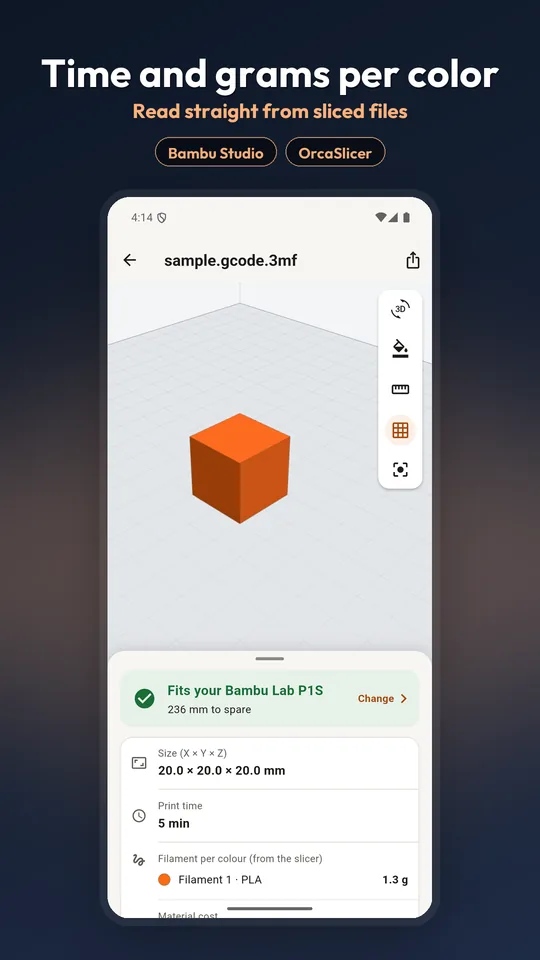
3MF projects from Bambu Studio and OrcaSlicer open with their plates and filament colours. A sliced .gcode.3mf already carries the print time and the grams of each colour, and LayerPeek reads them straight from the file; nothing is sliced on the phone. Plain G-code opens as a layer-by-layer preview with a scrubber, so you can see how the print builds up.
If the file will not open
- The download did not finish. A file much smaller than expected is incomplete. Download it again.
- It is a CAD file. STEP files are not meshes. Ask the sender for an STL or 3MF export.
- The app is not offered. Save the file to Files first, then open it from inside LayerPeek with Open a file.
- It still fails. Use the contact link on the support page and say where the file came from.
Questions
Can an iPhone open STL files without an app?
Usually not. Quick Look on iPhone is built for photos, documents and Apple's AR formats, so STL, 3MF and G-code files tend to show as a blank icon. Installing a viewer such as LayerPeek adds them to the Share sheet.
How do I open an STL file from WhatsApp on iPhone?
Tap the document in the chat, tap the Share button, and choose LayerPeek from the row of apps. If it is not shown, tap More at the end of the row.
Where are downloaded STL files on iPhone?
Files downloaded in Safari go to the Downloads folder in the Files app, usually under iCloud Drive or On My iPhone. Open LayerPeek, tap Open a file and browse there.
Do I need an internet connection to view an STL file?
Not with LayerPeek. Files are read on the phone, there is no sign-in, and viewing works offline.
Can I check whether a model fits my printer on iPhone?
Yes. Pick your printer once in LayerPeek and every model you open shows whether it fits the bed and how much room is left, in millimetres.

Opens STL, 3MF, OBJ and G-code on Android and iPhone. Free to download.